How It Works: From Forwarding to Your First Call
Your receptionist answers as your business after you forward the calls you choose. We help you set the office rules, test the greeting and review the results. Try the browser demo to hear the process first.
Try a new-patient call Request your free trial
Free trial on request: 14 days, up to 100 minutes.PrivacySecurity
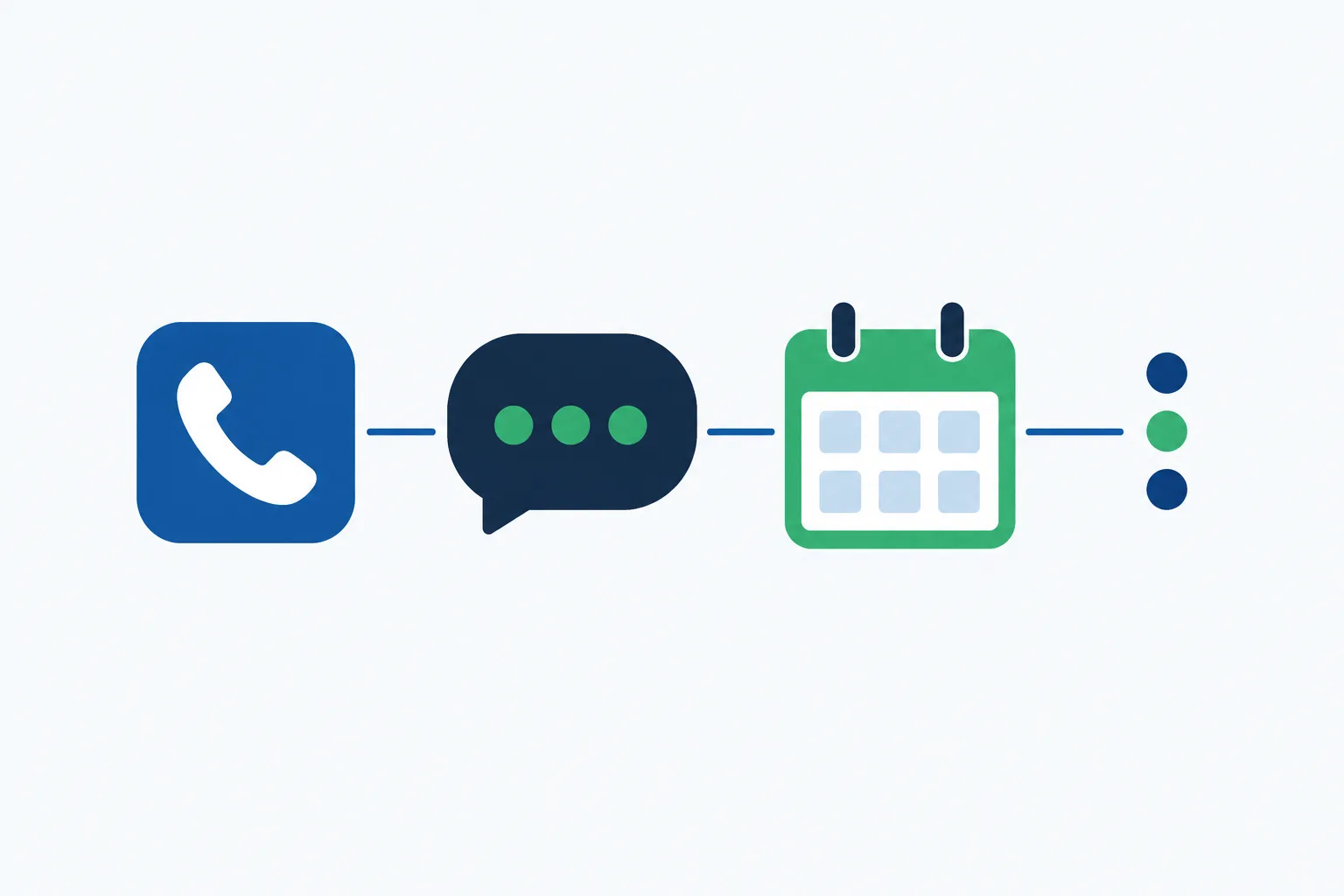
The four steps
- Choose your forwarding Keep your business number and follow our guide to forward all calls or selected overflow calls.
- Hear your receptionist answer It identifies itself as a virtual assistant, announces recording and follows your office instructions.
- Review messages and bookings Receive email and app push alerts, with appointment booking in Google Calendar or details for callbacks.
- Test before going live Make a test call, check the message and routing, then send your chosen business calls through.
Forward All Calls or Choose When We Answer
You choose whether your receptionist receives all calls or only no-answer, busy or after-hours calls. Your existing number stays with your business, and we provide forwarding instructions for your carrier or phone system.
Keep your number
Patients call the business number they already have.
Choose overflow
Forward unanswered or busy calls while your desk handles the rest.
Cover closed hours
Send after-hours calls to your receptionist using your forwarding setup.
See the details
Forwarding sends calls from your existing business number to the local number we provide. You select the forwarding option that matches how your desk works, then use the guide for your carrier or phone system.
For example, you could start with busy calls during adjustment hours. Your team keeps answering when available, while forwarded callers reach the receptionist. Check the chosen route with a test call before going live. Request a free trial for onboarding; we'll email your sign-in link when the trial is ready.
Hear the Greeting and Set Your Call Instructions
The AI receptionist opens with a virtual-assistant and recording notice, then handles requests using your office information. It takes messages, books appointments and routes clinical questions to your designated clinician.
Clear introduction
Callers hear that a virtual assistant is answering and recording.
Office information
Share your services, hours and price policy during the onboarding chat.
Defined boundaries
Insurance questions become messages; clinical questions go to your on-call clinician.
See the details
Your receptionist uses your onboarding answers and website to learn the front-desk information you want callers to hear. Tell it which services you offer, which you do not, and who should receive urgent calls.
It can explain your stated booking process or take an unanswered question for a callback. It does not diagnose symptoms, recommend exercises or verify insurance coverage. English and Spanish are available, including a language switch during the call. Hear the introduction yourself in the browser conversation demo.
Get Call Details by Email, App Push and Dashboard
Each call produces an email and app push alert with a summary, urgency tag, transcript and recording. Your dashboard holds call details, usage and settings, and a daily email digest helps you review activity.
Read the summary
See the caller's request alongside an urgency tag.
Check the conversation
Open the transcript and recording when you need more context.
Follow your booking choice
Receive Google Calendar appointments or details for your callback.
See the details
Your alerts give you the request and the conversation behind it. Review a summary to decide which desk task comes next, then check the transcript or recording if you need the caller's wording.
For urgent calls, your receptionist follows the contact order you set. A warm transfer gives your on-call person a short summary before they press 1 to accept; paging is another option. Routine appointment requests can become Google Calendar bookings or callback messages. You can enter the summaries into your practice software yourself; direct software connections are not live.
Test Your Setup and Change Instructions Later
You make a test call before going live, then change settings by telling the AI in plain words. Check your greeting, booking choice, call alerts and urgent contact route against your office instructions.
Try a routine request
Check how the receptionist handles your booking instructions.
Check urgent routing
Confirm the intended on-call person receives the test transfer.
Update in plain words
Tell the AI when hours or office policies change.
See the details
The test call lets you hear your setup before patients reach it. Use a fictional caller and ask about a service, request an appointment or test the route to your on-call contact. Review the resulting alert as well as the spoken answer.
If something needs changing, update the instructions and test that part again. Keep reviewing summaries once you go live because the AI can make mistakes. Our healthcare position is the pending status (no business associate agreement is in place); until that status is set, do not use the service with protected health information.
Common questions
Can I keep my chiropractic office's phone number?
Yes. Your patients keep dialing your existing business number, and you forward selected calls to the local number we provide. We supply a forwarding guide for your carrier or phone system. You can choose all calls, busy calls, unanswered calls or after-hours coverage, then test your selection before going live.
Will patients know the receptionist is AI?
The greeting identifies the receptionist as a virtual assistant and tells callers that the call is recorded. Both notices are part of the opening and cannot be switched off. Try a conversation in the browser demo to hear the introduction and how it moves into a booking request or message.
What happens when a caller asks something it cannot answer?
Your receptionist takes the question and callback details for your team instead of filling in an answer. You receive the message with the transcript and recording. Clinical questions follow your on-call instructions, while insurance and benefits questions are noted for the front desk to review.
Where do I find my messages after a call?
Messages arrive through email and app push notifications, with the summary, urgency tag, transcript and recording together. You can also review calls in the dashboard and read the daily email digest. Use those details to return calls, check what was said or enter a summary into your practice software.
Can I test the receptionist before forwarding patient calls?
Yes. Start with the browser demo, which needs no signup; request a free trial with a setup test call. Check the greeting, routine questions and urgent contact route with fictional details. A card will be required before call forwarding goes live, and the trial will have a time and minute limit.
Try a Call Before You Set Up Your Office
Open the browser demo and ask a fictional front-desk question. When you are ready, request a free trial to teach your receptionist your office rules.